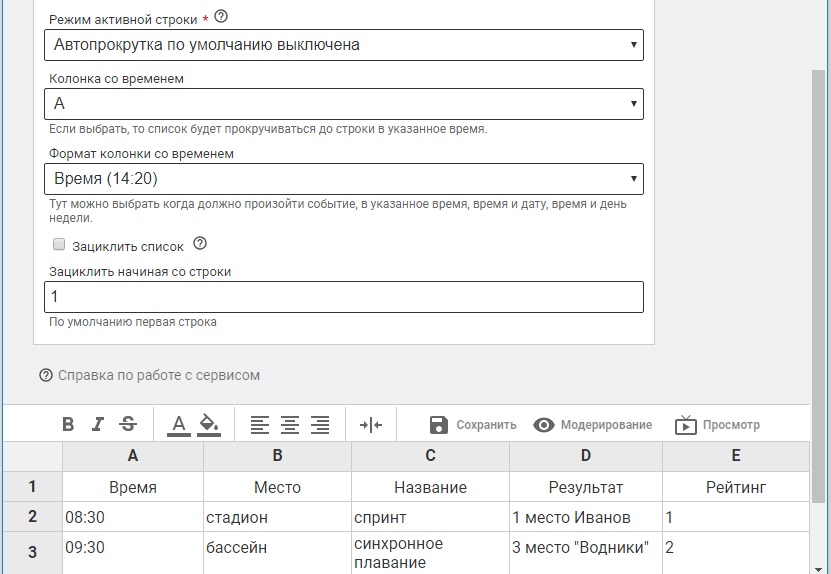
Choosing the mode of the active string

Choosing the mode of the active string |
|
|---|
|
The most important element of the service is the mechanism of automatic page movement. It allows keeping at the top of the screen the rows with the events whose time has come. Such rows are called active ones ○ Choose the option of the room operation that suits you: ☞ Auto scroll to the active string
This option is suitable if your room is mostly demonstrated on advertising-information displays. For example, a school timetable. Big monitors with an open browser page can be placed in the hallways. The rows will contain the times of the bells for classes from Mon to Sat, and the columns - the classes. In the mode «Auto scroll to the active string» the timetable will move up on its own, keeping at the top of the screen the row with the lessons whose time has come. A student who opens the timetable page on his mobile phone will see which lesson is going on now and which lessons are coming next *the auto scroll can be disabled in the room menu ☞ Auto scroll is disabled by default
This option is suitable if your room is focused on mobile users. For example, you created a sports timetable with the results of the games. A user on a mobile phone or tablet will be able to view the whole list, and the auto scroll will not bother him *the auto scroll can be enabled in the room menu This option is also suitable for the room where the rows are updated not automatically by time but manually by a moderator, for example, by a post-office employee in an electronic queue
☞ Without an active string
Choose this option if your room is not a timetable and you do not create a time column. For example, you use the service to demonstrate a cafe menu. The visitors will be able to see the assortment available at the moment on the monitor with an open room page. And you will be able to promptly hide the menu strings with the dish that is not available for order at the moment |
Time column○ Choose the name of the column in which you will specify the time of the events of your timetable. The service will highlight the string with the relevant event by the specified time
|
Time column format○ Choose the format of the time column: ☞ --------- - without activation by time ☞ Time (14:20) - activation by time ☞ Date (31.08.2017) - activation by date ☞ Date and time (31.08.2017 14:20) - activation by date and time ☞ Day of week and time (MON 14:20) - activation on the day of week by time
*it is important to fill in the time column correctly in accordance with the chosen format option. Regardless of the chosen format, the cell can be left unfilled |
|
« Previous info.paperup.ru Next » |
|---|